Guides & Troubleshooting
Step-by-step instructions for using Display Driver Uninstaller safely and fixing common driver issues.
1. How to use DDU safely (recommended workflow)
- Download DDU from the download button (see Download page).
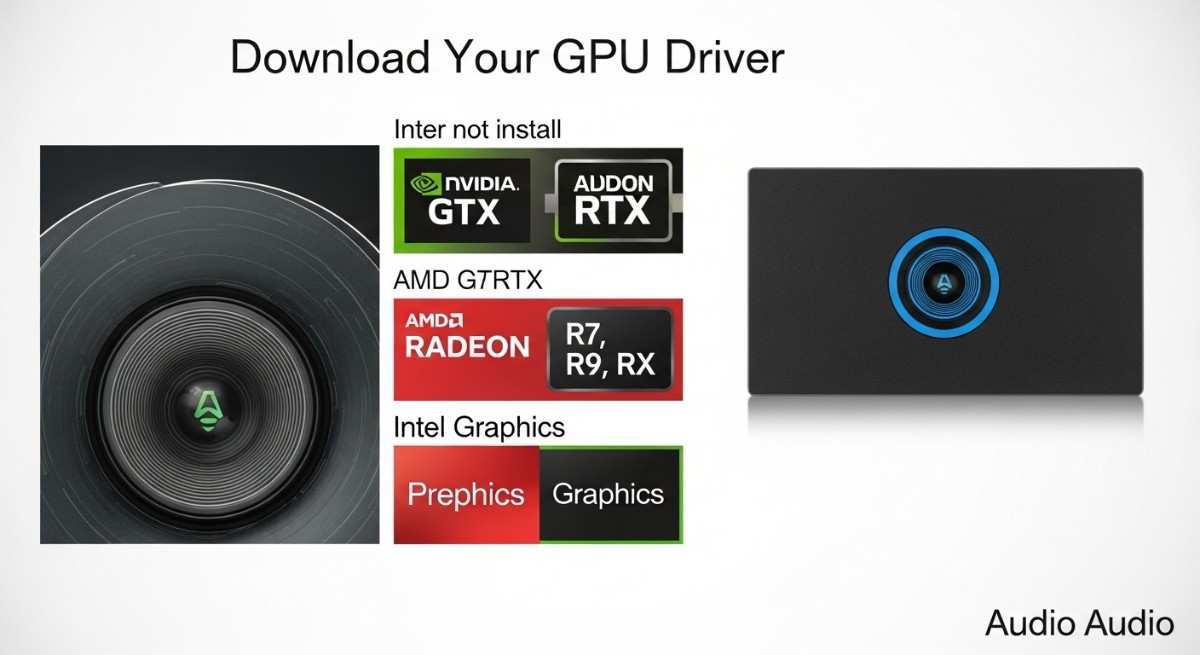
- Download your GPU or audio driver (NVIDIA, AMD, or Intel) from the vendor’s site. Do not install yet.
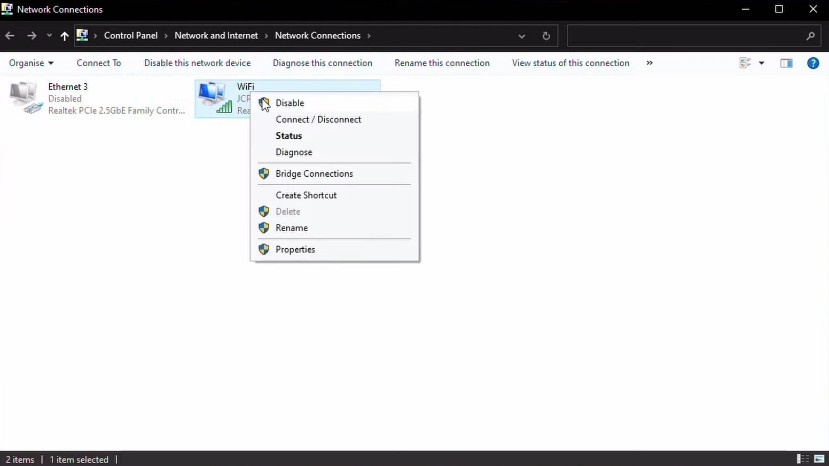
- Disconnect network connections (Wi‑Fi and Ethernet) so Windows does not auto-install drivers. Do not disable Bluetooth if you use a Bluetooth keyboard or mouse.
- Boot into Safe Mode. See guide 2 for steps.
- Extract and launch DDU from a local drive (e.g. Desktop or C:\DDU). Do not run from a network drive.
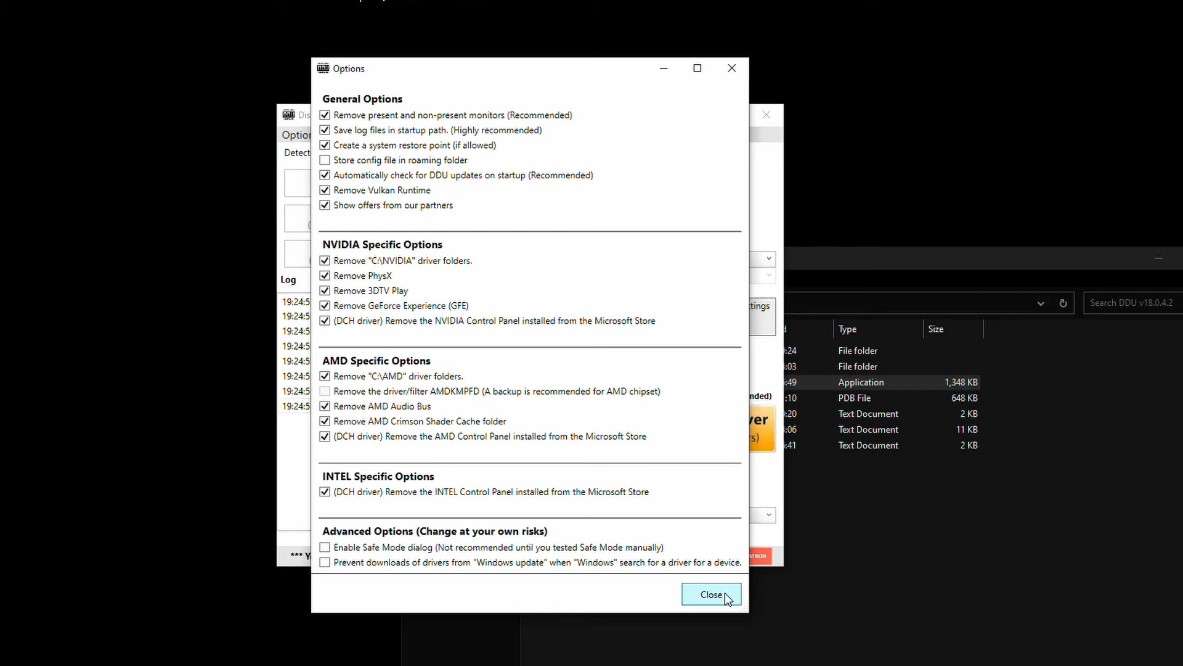
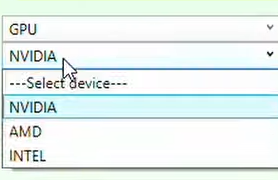
- Select device and cleanup option. Choose device type (GPU), select vendor (NVIDIA, AMD, or Intel), then choose Clean and restart (typical) or Clean and shutdown (if swapping GPU).
- After restart (or after powering on following shutdown), boot in normal mode and install the new driver you downloaded. Keep the internet disconnected until the driver install completes.
Steps at a glance
2. How to boot into Safe Mode (Windows 10/11)
- Click Start → Power.
- Hold Shift and click Restart.
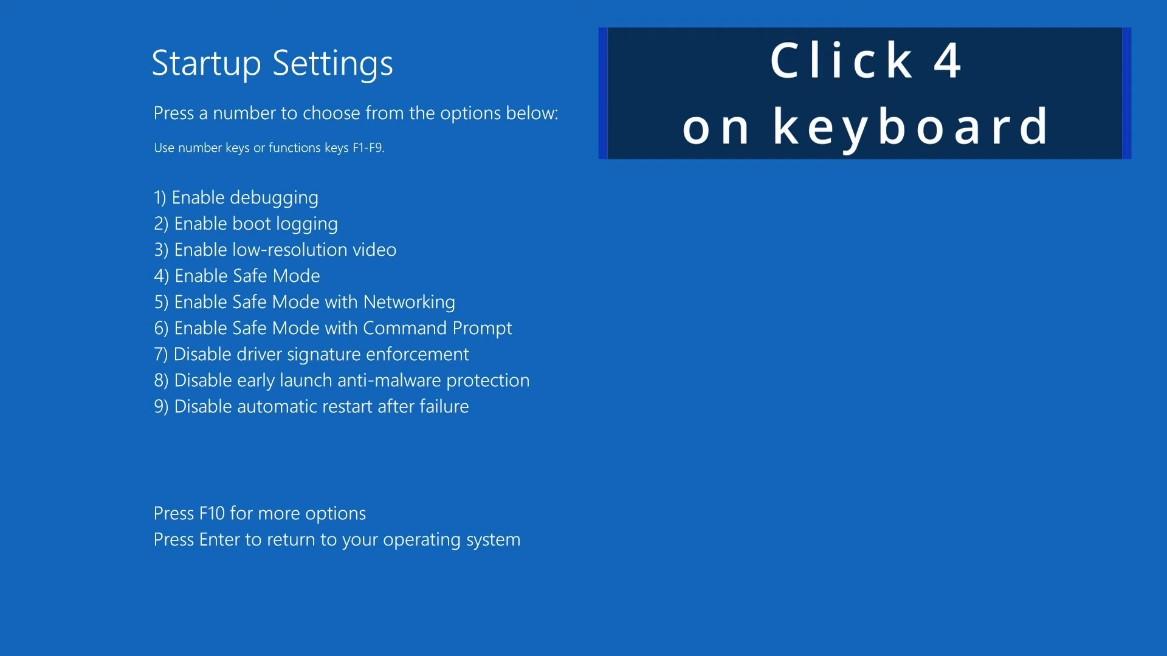
- When the blue menu appears: Troubleshoot → Advanced options → Startup Settings → Restart.
- After the PC restarts, press 4 (or F4) for Enable Safe Mode.
3. Install graphics drivers after using DDU
- Keep the internet off until the driver installation finishes, so Windows Update does not push a different driver.
- After cleanup, low resolution is normal until you install the new driver.
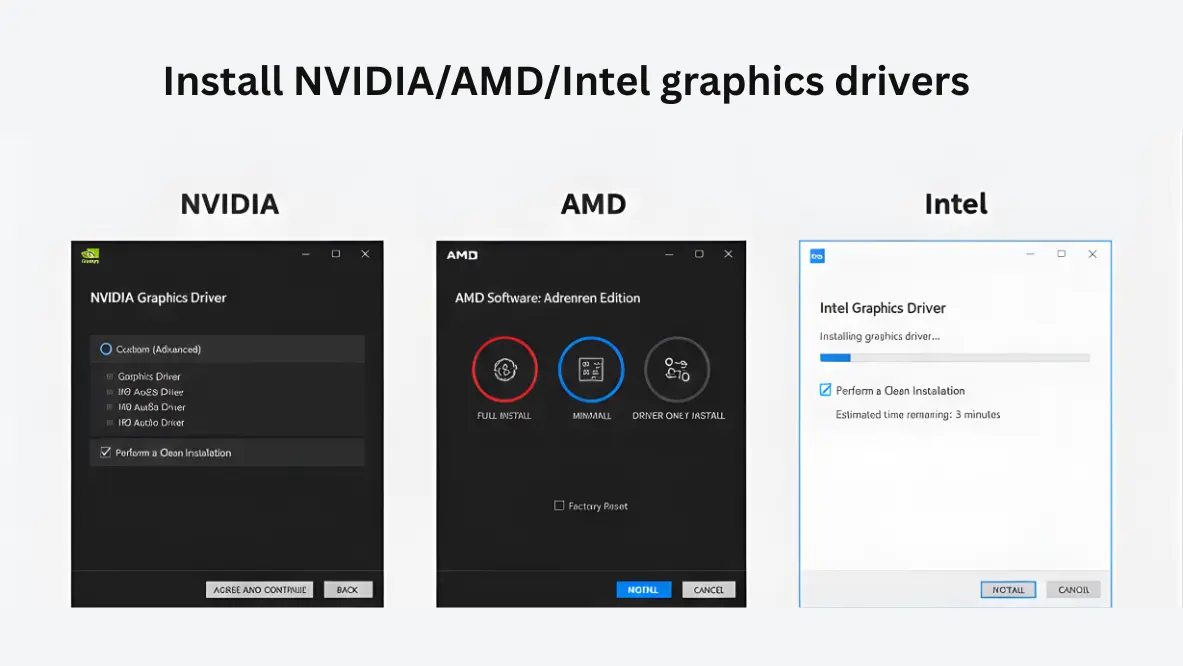
- Run the driver installer you downloaded earlier (NVIDIA/AMD/Intel). Restart when prompted.
4. Switching GPU brands (AMD ↔ NVIDIA)
When changing from one vendor to another on the same Windows install, remove both driver sets to avoid conflicts.
- Download the new vendor’s driver in advance; do not install yet.
- Disconnect internet and boot into Safe Mode.
- Run DDU, select the current GPU vendor, choose Clean and do NOT restart. After cleanup, switch the dropdown to the other vendor and run cleanup again (or use Clean and shutdown if you are removing the current card next).
- If you are physically swapping the card: use Clean and shutdown, then power off, swap the GPU, power on, and install the new driver.
5. Fix: driver install failed / error codes
Many “driver install failed” or error codes are caused by leftover files and registry entries from previous installs or incomplete uninstalls. DDU removes those leftovers so the new driver can install on a clean system. Follow the recommended workflow (Safe Mode, disconnect internet, then install the driver manually).
6. Fix: black screen during cleanup
A temporary black screen while DDU is removing the active GPU driver is normal. The display may go black for a few seconds to a few minutes because the graphics driver is being unloaded. Wait for the process to finish; the PC will restart (or shut down) when done. Do not force power off unless the system is unresponsive for an unusually long time.
7. Windows Safe Mode login (PIN / Windows Hello)
Safe Mode may not support PIN or Windows Hello. Before entering Safe Mode, enable password sign-in (Microsoft account password) and sign in at least once with that password in normal mode. Then when you boot into Safe Mode, use the same password to log in.
8. BitLocker note
If your drive is protected by BitLocker, have your recovery key available before rebooting. In some cases Windows may ask for the key after a restart; having it ready avoids being locked out.
Common problems & best practices
- Always create a system restore point (or backup) before using DDU.
- Run DDU from a local drive, not a network or USB if the USB is slow or locked during Safe Mode.
- If you must use Normal Mode, close all other apps and run DDU twice (clean and restart, then clean and restart again) for better results.
Antivirus warnings
DDU can be flagged by some security products because it modifies drivers and registry. To avoid interruptions:
- Exclude the DDU folder from real-time scanning.
- Verify checksums (e.g. SHA-256) when the developer publishes them.
- Download only from the official source or trusted mirrors.